layout: post title: “Iptables Tutorial: Ultimate Guide to Linux Firewall” categories: netdevops tags: Network Engineer date: 2022-5-28 —
Iptables Tutorial: Ultimate Guide to Linux Firewall
Introduction
All modern operating systems come equipped with a firewall – a software application that regulates network traffic to a computer. Firewalls create a barrier between a trusted network (like an office network) and an untrusted one (like the internet). Firewalls work by defining rules that govern which traffic is allowed, and which is blocked. The utility firewall developed for Linux systems is iptables.
In this tutorial, learn how how to install iptables, configure, and use iptables in Linux.
Prerequisites
- A user account with sudo privileges
- Access to a terminal window/command line (Ctrl-Alt-T, Ctrl-Alt-F2)
How iptables Work
Network traffic is made up of packets. Data is broken up into smaller pieces (called packets), sent over a network, then put back together. Iptables identifies the packets received and then uses a set of rules to decide what to do with them.
Iptables filters packets based on:
- Tables: Tables are files that join similar actions. A table consists of several chains.
- Chains: A chain is a string of rules. When a packet is received, iptables finds the appropriate table, then runs it through the chain of rules until it finds a match.
- Rules: A rule is a statement that tells the system what to do with a packet. Rules can block one type of packet, or forward another type of packet. The outcome, where a packet is sent, is called a target.
- Targets: A target is a decision of what to do with a packet. Typically, this is to accept it, drop it, or reject it (which sends an error back to the sender).
Tables and Chains
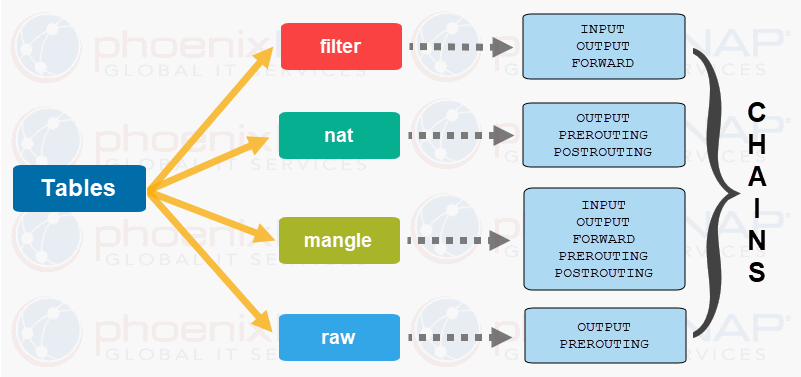
Linux firewall iptables has four default tables. We will list all four along with the chains each table contains.
\1. Filter
The Filter table is the most frequently used one. It acts as a bouncer, deciding who gets in and out of your network. It has the following default chains:
- Input – the rules in this chain control the packets received by the server.
- Output – this chain controls the packets for outbound traffic.
- Forward – this set of rules controls the packets that are routed through the server.
\2. Network Address Translation (NAT)
This table contains NAT (Network Address Translation) rules for routing packets to networks that cannot be accessed directly. When the destination or source of the packet has to be altered, the NAT table is used. It includes the following chains:
- Prerouting – this chain assigns packets as soon as the server receives them.
- Output – works the same as the output chain we described in the filter table.
- Postrouting – the rules in this chain allow making changes to packets after they leave the output chain.
\3. Mangle
The Mangle table adjusts the IP header properties of packets. The table has all the following chains we described above:
- Prerouting
- Postrouting
- Output
- Input
- Forward
\4. Raw
The Raw table is used to exempt packets from connection tracking. The raw table has two of the chains we previously mentioned:
- Prerouting
- Output
\5. Security (Optional)
Some versions of Linux also use a Security table to manage special access rules. This table includes input, output, and forward chains, much like the filter table.
Targets
A target is what happens after a packet matches a rule criteria. Non-terminating targets keep matching the packets against rules in a chain even when the packet matches a rule.
With terminating targets, a packet is evaluated immediately and is not matched against another chain. The terminating targets in Linux iptables are:
- Accept – this rule accepts the packets to come through the iptables firewall.
- Drop – the dropped package is not matched against any further chain. When Linux iptables drop an incoming connection to your server, the person trying to connect does not receive an error. It appears as if they are trying to connect to a non-existing machine.
- Return – this rule sends the packet back to the originating chain so you can match it against other rules.
- Reject – the iptables firewall rejects a packet and sends an error to the connecting device.
How to Install and Configure Linux Firewall iptables
Installing Iptables Ubuntu
Iptables are installed default on most Linux systems. To confirm that iptables is installed, use the following command:
sudo apt-get install iptables
The example output in Ubuntu confirms that the latest version of iptables is already present:

If you want to keep iptables firewall rules when you reboot the system, install the persistent package:
sudo apt-get install iptables-persistent
Installing Iptables CentOS
In CentOS 7, iptables was replaced by firewalld.
To install iptables, first you need to stop firewalld. Enter the following commands:
sudo systemctl stop firewalld``sudo systemctl disable firewalld``sudo systemctl mask firewalld
The commands stop and prevent firewalld from starting at boot, and do not let other services start firewalld.

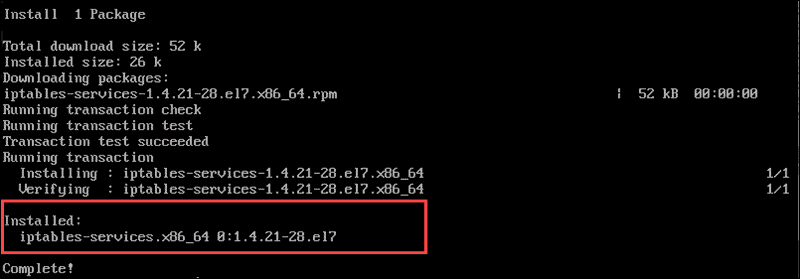
Next, install and enable iptables. First, install the iptables services package with the following command:
sudo yum -y install iptables-services
This package preserves your rules after a system reboot. The information displayed below confirms that the installation is complete:
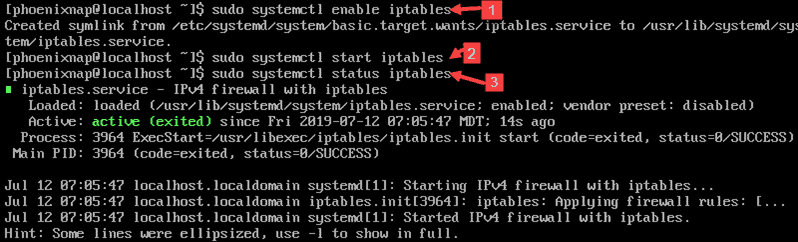
Enter the following commands to enable and start iptables in CentOS 7:
sudo systemctl enable iptables``sudo systemctl start iptables
The status command confirms the status of the application:
sudo systemctl status iptables
Note:There are two different versions of iptables, for IPv4 and IPv6. The rules we are covering in this Linux iptables tutorial is for IPv4.
To configure iptables for IPv6, you need to use the iptables6 utility. These two different protocols do not work together and have to be configured independently.
Basic Syntax for iptables Commands and Options
In general, an iptables command looks as follows:
sudo iptables [option] CHAIN_rule [-j target]
Here is a list of some common iptables options:
-A --append– Add a rule to a chain (at the end).-C --check– Look for a rule that matches the chain’s requirements.-D --delete– Remove specified rules from a chain.-F --flush– Remove all rules.-I --insert– Add a rule to a chain at a given position.-L --list– Show all rules in a chain.-N -new-chain– Create a new chain.-v --verbose– Show more information when using a list option.-X --delete-chain– Delete the provided chain.
Iptables is case-sensitive, so make sure you’re using the correct options.
Configure iptables in Linux
By default, these commands affect the filters table. If you need to specify a different table, use the –t option, followed by the name of the table.
Check Current iptables Status
To view the current set of rules on your server, enter the following in the terminal window:
sudo iptables -L
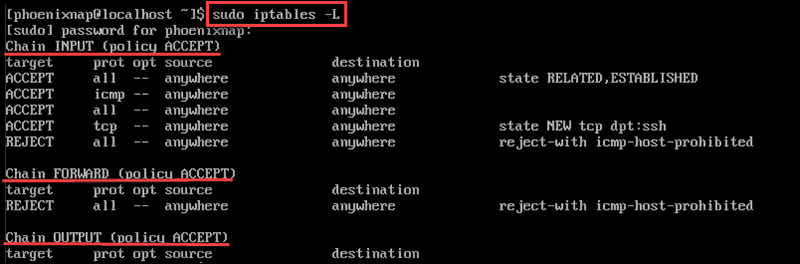
The system displays the status of your chains. The output will list three chains:
Chain INPUT (policy ACCEPT)``Chain FORWARD (policy ACCEPT)``Chain OUTPUT (policy ACCEPT)
Enable Loopback Traffic
It’s safe to allow traffic from your own system (the localhost). Append the Input chain by entering the following:
sudo iptables -A INPUT -i lo -j ACCEPT
This command configures the firewall to accept traffic for the localhost (lo) interface (-i). Now anything originating from your system will pass through your firewall. You need to set this rule to allow applications to talk to the localhost interface.
Allow Traffic on Specific Ports
These rules allow traffic on different ports you specify using the commands listed below. A port is a communication endpoint specified for a specific type of data.
To allow HTTP web traffic, enter the following command:
sudo iptables -A INPUT -p tcp --dport 80 -j ACCEPT
To allow only incoming SSH (Secure Shell) traffic, enter the following:
sudo iptables -A INPUT -p tcp --dport 22 -j ACCEPT
To allow HTTPS internet traffic, enter the following command:
sudo iptables -A INPUT -p tcp --dport 443 -j ACCEPT
The options work as follows:
-p– Check for the specified protocol (tcp).--dport– Specify the destination port.-j jump– Take the specified action.
Control Traffic by IP Address
Use the following command to ACCEPT traffic from a specific IP address.
sudo iptables -A INPUT -s 192.168.0.27 -j ACCEPT
Replace the IP address in the command with the IP address you want to allow.
You can also DROP traffic from an IP address:
sudo iptables -A INPUT -s 192.168.0.27 -j DROP
You can REJECT traffic from a range of IP addresses, but the command is more complex:
sudo iptables -A INPUT -m iprange --src-range 192.168.0.1-192.168.0.255 -j REJECT
The iptables options we used in the examples work as follows:
-m– Match the specified option.-iprange– Tell the system to expect a range of IP addresses instead of a single one.--src-range– Identifies the range of IP addresses.
Dropping Unwanted Traffic
If you define dport iptables firewall rules, you need to prevent unauthorized access by dropping any traffic that comes via other ports:
sudo iptables -A INPUT -j DROP
The -A option appends a new rule to the chain. If any connection comes through ports other than those you defined, it will be dropped.
Delete a Rule
You can use the -F option to clear all iptables firewall rules. A more precise method is to delete the line number of a rule.
First, list all rules by entering the following:
sudo iptables -L --line-numbers
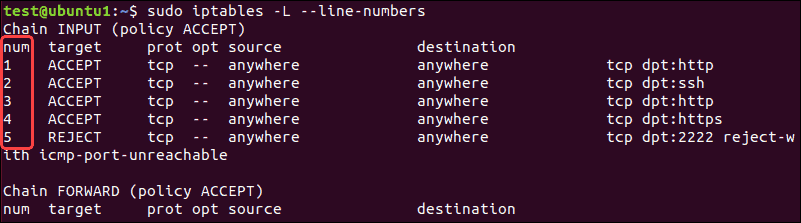
Locate the line of the firewall rule you want to delete and run this command:
sudo iptables -D INPUT <Number>
Replace <*Number*> with the actual rule line number you want to remove.
Save Your Changes
Iptables does not keep the rules you created when the system reboots. Whenever you configure iptables in Linux, all the changes you make apply only until the first restart.
To save the rules in Debian-based systems, enter:
sudo /sbin/iptables–save
To save the rules in Red-Hat based systems, enter:
sudo /sbin/service iptables save
The next time your system starts, iptables will automatically reload the firewall rules.
Conclusion
After reading this Linux iptables tutorial, you should have a better understanding of how iptables work and how to install the iptables tool.
You can now also configure basic iptables firewall rules for your Linux system. Feel free to experiment, as you can always delete rules that you do not need, or flush all rules and start again.